Short answer: Caching saves a ready made copy of your pages and files so they do not have to be rebuilt or downloaded from scratch on every visit. A content delivery network, or CDN, stores copies of your files on servers in many places so visitors download them from somewhere nearby. Together they make pages load faster and reduce strain on your hosting, and both can be set up on most small business websites for free or at low cost.
When someone visits a WordPress page, a lot happens behind the scenes. The server runs code, asks the database for content, assembles the page and sends it back along with images, styles and scripts. Doing all of that for every single visitor is slow and wasteful, especially when the page has not changed. Caching and CDNs are the two most common ways to cut out that repeated work.
This guide explains both in plain language, how they help a local business website and what to watch for when you set them up.
What caching means
Caching is simply keeping a copy of something so it can be reused. There are several kinds involved in a typical website.
Page caching
The server builds a page once, saves the finished result and serves that saved copy to the next visitors until the page changes. This skips the database and code work for most visits and is usually the biggest single speed improvement for WordPress sites.
Browser caching
Your site tells visitors’ browsers to keep copies of files that rarely change, such as your logo, fonts and style sheets. When the visitor opens a second page, the browser reuses those files instead of downloading them again.
Object caching
Some hosts store the results of common database queries in memory so they can be reused. This helps busier or more complex sites and is usually configured by the host.
What a CDN does
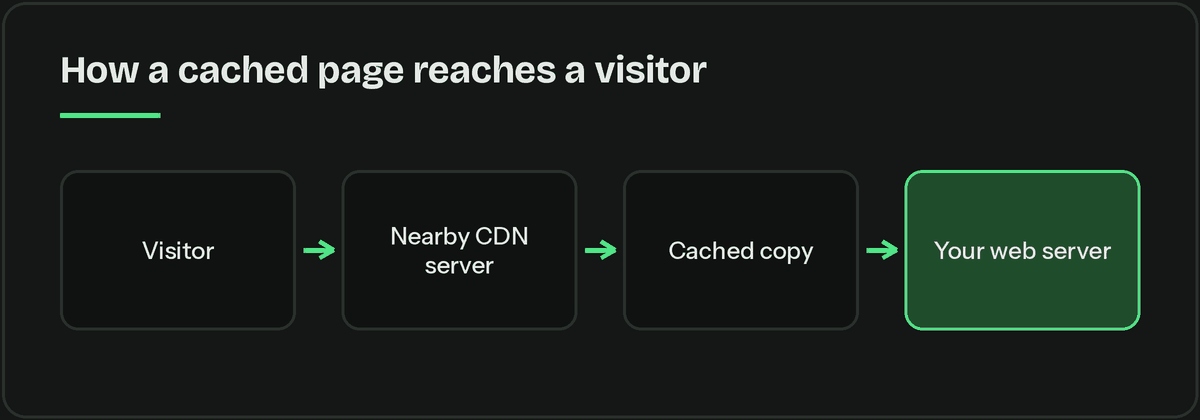
A content delivery network is a group of servers spread across many locations. When you connect your site to a CDN, copies of your images, styles and scripts, and sometimes whole pages, are stored on those servers. A visitor is served from the nearest one, which shortens the distance data travels.
For a local business whose customers are mostly in one region, the distance benefit is smaller than it is for a national site. CDNs still help, though, because they are built to deliver files quickly, they take load off your hosting account and many include extras such as image optimization and protection against malicious traffic.
How caching and CDNs help SEO
Speed is part of how Google evaluates page experience, and faster pages keep visitors around. Caching improves how quickly the server responds, which helps every other loading measurement. A CDN speeds up delivery of heavy files like images. Our article on why page speed matters explains the connection between speed, rankings and leads.
There is also a reliability benefit. A cached site handles sudden bursts of visitors better, so a mention on local news or a busy weekend is less likely to slow your site to a crawl.
How to set them up on WordPress
Check what your host provides
Many hosts include page caching and sometimes a CDN in their plans. Check your hosting dashboard before installing anything, because running two caching systems at once can cause conflicts.
Use one caching plugin if needed
If your host does not provide caching, choose one reputable caching plugin. Turn on page caching and browser caching first, then test your site. Add more advanced options, such as combining or delaying scripts, one at a time.
Connect a CDN
Some CDN services offer free plans suitable for small business sites. Setup usually involves either pointing your domain’s DNS through the service or adding the CDN address in a plugin. If DNS changes are involved, have someone comfortable with domain settings handle it, since mistakes can take the site or email offline.
Things to watch for
Seeing old content after edits
If you change a page and still see the old version, the cache has not been cleared. Most caching tools clear the cache for a page when you save it, and they include a button to clear everything.
Forms and dynamic features
Pages with forms, booking widgets or personalized content sometimes need to be excluded from caching or tested carefully. Always submit a test form after enabling caching.
Logged in views
Administrators usually see an uncached version of the site. Check the site in a private browser window to see what visitors see.
Script optimization breaking things
Options that delay or combine JavaScript can break menus, sliders or forms. Enable them one at a time and test the main pages after each change.
A simple setup checklist
- Check whether your host already provides caching or a CDN.
- Enable page caching and browser caching with one tool.
- Test the homepage, a service page and the contact form in a private window.
- Connect a CDN if your host or plan supports it.
- Retest speed in PageSpeed Insights and compare with your earlier results.
- Clear the cache after major changes to the site.
If you would rather have someone handle caching, CDN and other speed work, our technical SEO services cover performance tuning for business websites.
Frequently asked questions
Will caching show visitors outdated information?
Only if the cache is not cleared after changes. Most caching tools clear affected pages automatically when you save them, and you can clear everything manually after larger edits.
Does a local business really need a CDN?
It is not essential, but it often helps. Even for local audiences, a CDN can deliver images faster and reduce load on your hosting.
Can caching break a website?
Basic page caching rarely causes problems. Advanced options like delaying scripts are more likely to cause issues, which is why they should be enabled and tested one at a time.
Next step
Want to know whether caching and delivery settings are slowing your site down? Request a free audit and we will check your speed setup and suggest practical fixes.
Work with a local team: Spokane SEO, Spokane Valley SEO and a free SEO audit from an SEO company in Spokane.